ID conversion
Introduction
The Integration API lets you use your own IDs instead of Centra's, simplifying integration development and maintenance. This is very similar to how ID conversion works in SOAP API and other modules, however, we extended it to be manageable through the Integration API directly as part of the Centra core. It also allows to support any custom integrations that are not Centra modules.
IDs and the ID conversion table are hence a fundamental part of this API.
The IDs are always in the externalId field and are used to uniquely identify orders, products, customers, and other data objects for each integration. The full list of supported types can be found here.
The ID conversion table translates back and forth between Centra’s internal IDs and the IDs you chose on your side.
When data originates from Centra; for example from orders, you will always get Centra’s internal numeric ID. For orders, this is the order number.
When data originates from an external system, for example, products, you can pick any unique externalId you prefer when you send the data to Centra. This is when the ID conversion table comes into effect; Centra will create a mapping from your ID to Centra’s internal numeric ID in the conversion table. You can then use the ID you picked in inputs and filters, and read it back through the externalId field. Responses still contain Centra's id as well.
For example; you create a product and pass the externalId of your choice in the create input. You can use that ID right away to update the product and/or for other operations (like creating product variants). For objects that already exist, use the setIdConversions mutation to map their Centra IDs to your external IDs.
You can view and edit the conversion table using the Centra interface or the Integration API.
You’ll need a valid token assigned to a corresponding integration in order to use this feature in the Integration API. Without it, any request using external IDs fails with the error: “Your token doesn't have the integration name filled in, and this field is required for the requested feature to work.”
What is an external ID exactly?
An external ID is a string that is used to identify an object on the external side. It is a string of 1 to 255 UTF-8 characters. Leading and trailing whitespace is removed, and any sequence of whitespace characters inside is replaced with a single space. Keep in mind that it is not required to have any special meaning, unlike EAN/SKU/etc., it can be literally any string within given boundaries (but of course, you can use EAN/SKU/etc for identification if you want). We don’t set any boundaries on purpose (except for sizes, which need a specific prefix) so that you have all the freedom in building your integration with Centra!
External IDs belong to an integration: each integration has its own conversion table, so the same object can have a different external ID in each integration, and your token only sees the external IDs of its own integration.
What is an internal ID?
An internal ID is an identifier used by Centra to identify objects internally. It is a positive integer. The only exception is an order which can be identified using a hash string, but it also has a number – and the number is what the ID conversion table uses as the internal ID of an order. Unlike external IDs, these are created by Centra and you cannot change them. The Integration API will convert all external IDs provided in the input into internal IDs to resolve referenced objects.
There are certain uniqueness rules for ID conversion: for a given integration and object type, any two entries cannot have the same external ID and/or internal ID. For the Integration API entry management, any new entries that collide with the existing ones will overwrite them! Creating/editing in AMS will trigger validation errors if there are any collisions.
Using external IDs in the Integration API
Assigning external IDs in create and update mutations
Most create and update mutations accept an optional externalId field in their input, for example createProduct, updateProduct, createAccount, createMarket or createFolder. This is the easiest way of assigning external IDs, as you don't need any extra calls:
mutation {
  createFolder(input: { name: "Shoes", externalId: "folder-shoes" }) {
    folder {
      id
      externalId
    }
    userErrors {
      message
      path
    }
    userWarnings {
      message
      path
    }
  }
}
A few things to keep in mind:
- In an update mutation, the given
externalIdreplaces the object's current external ID. If another object of the same type already had this external ID, it is moved to the updated object (see the uniqueness rules above). - The external ID is saved together with the object. If it can't be saved, the whole mutation is rolled back, and the error is reported in
userErrorswith the path ending withinput.externalId. - The new external ID can be used right away. A request can contain several mutations, which are executed in order, so a later one can already reference an object created by an earlier one by its external ID. For example, you can create a parent folder and its subfolders, or an account with its buyers and address book entries, in one request:
mutation {
  parent: createFolder(input: { name: "Shoes", externalId: "folder-shoes" }) {
    folder {
      id
    }
    userErrors {
      message
      path
    }
  }
  child: createFolder(
    input: {
      name: "Sneakers"
      externalId: "folder-sneakers"
      parent: { externalId: "folder-shoes" }
    }
  ) {
    folder {
      id
    }
    userErrors {
      message
      path
    }
  }
}
Fetching and filtering objects by external IDs
External IDs can be used everywhere where you would otherwise use Centra's ID:
- Single object queries accept
externalIdas an alternative toid, for exampleproduct(externalId: "SKU-123")ororder(externalId: "web-order-1"). Pass exactly one of them. - Object references in mutation inputs (like
product: {...}orparent: {...}) accept eitheridorexternalId, as in the folder example above. - Filters of list queries and connections accept a list of external IDs, for example
products(where: {externalId: ["SKU-123", "SKU-456"]}).
query {
  product(externalId: "SKU-123") {
    id
    externalId
    name
  }
  products(where: { externalId: ["SKU-123", "SKU-456"] }) {
    id
    externalId
  }
}
Reading external IDs from objects
All the object types that support ID conversions have an externalId field. It contains the external ID assigned in your token's integration, or null if the object doesn't have one. This way you don't need to query the conversion table separately to translate Centra's IDs back to yours.
Managing conversion table using AMS
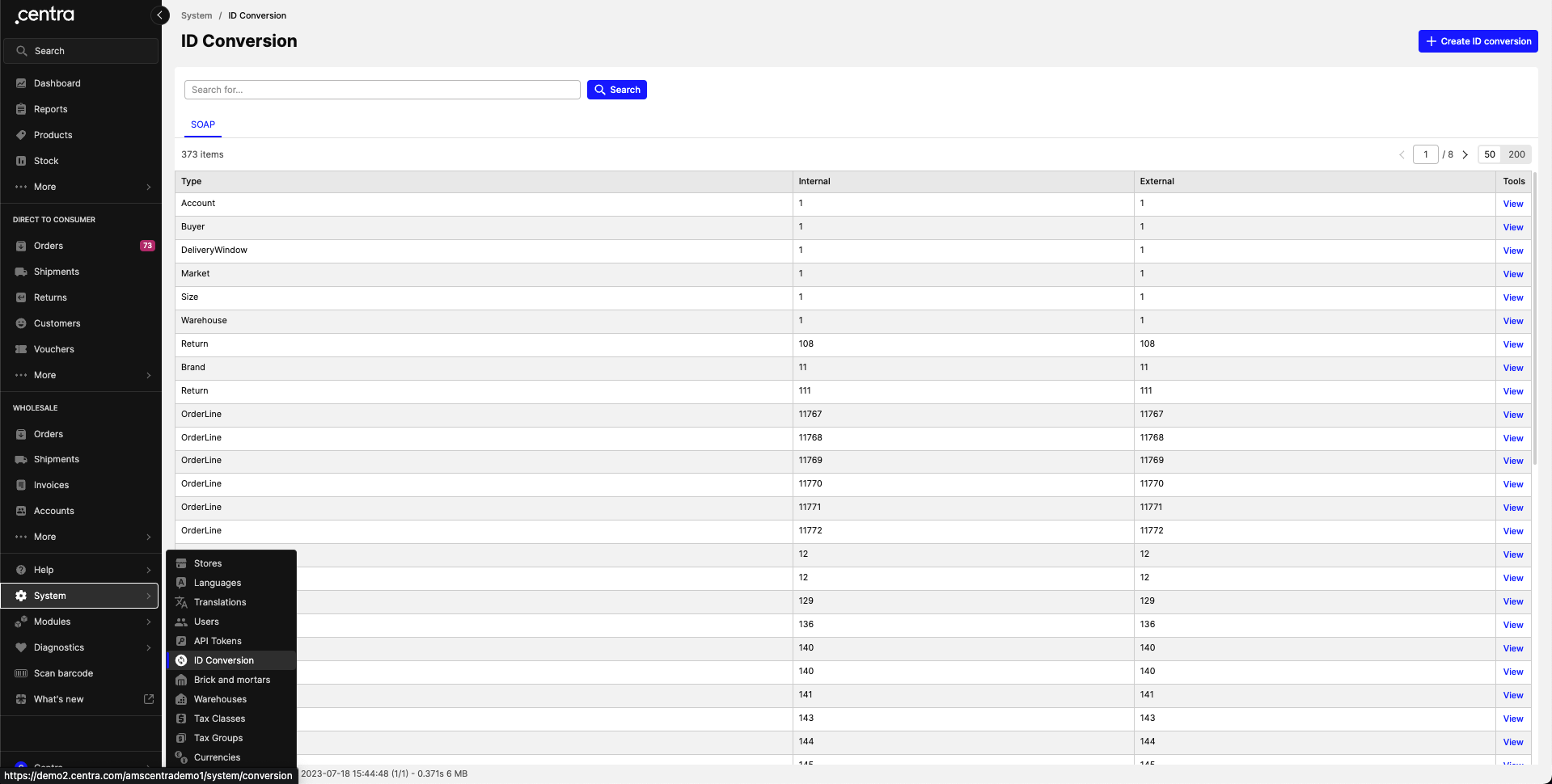
We have created a view in the AMS so that you can manage your ID conversions for all of your integrations in one place! To access it, you need to navigate to System → ID conversion.
ID conversion section
There is a tab per integration that is enabled. In order to view a single conversion, click on Tools → View.
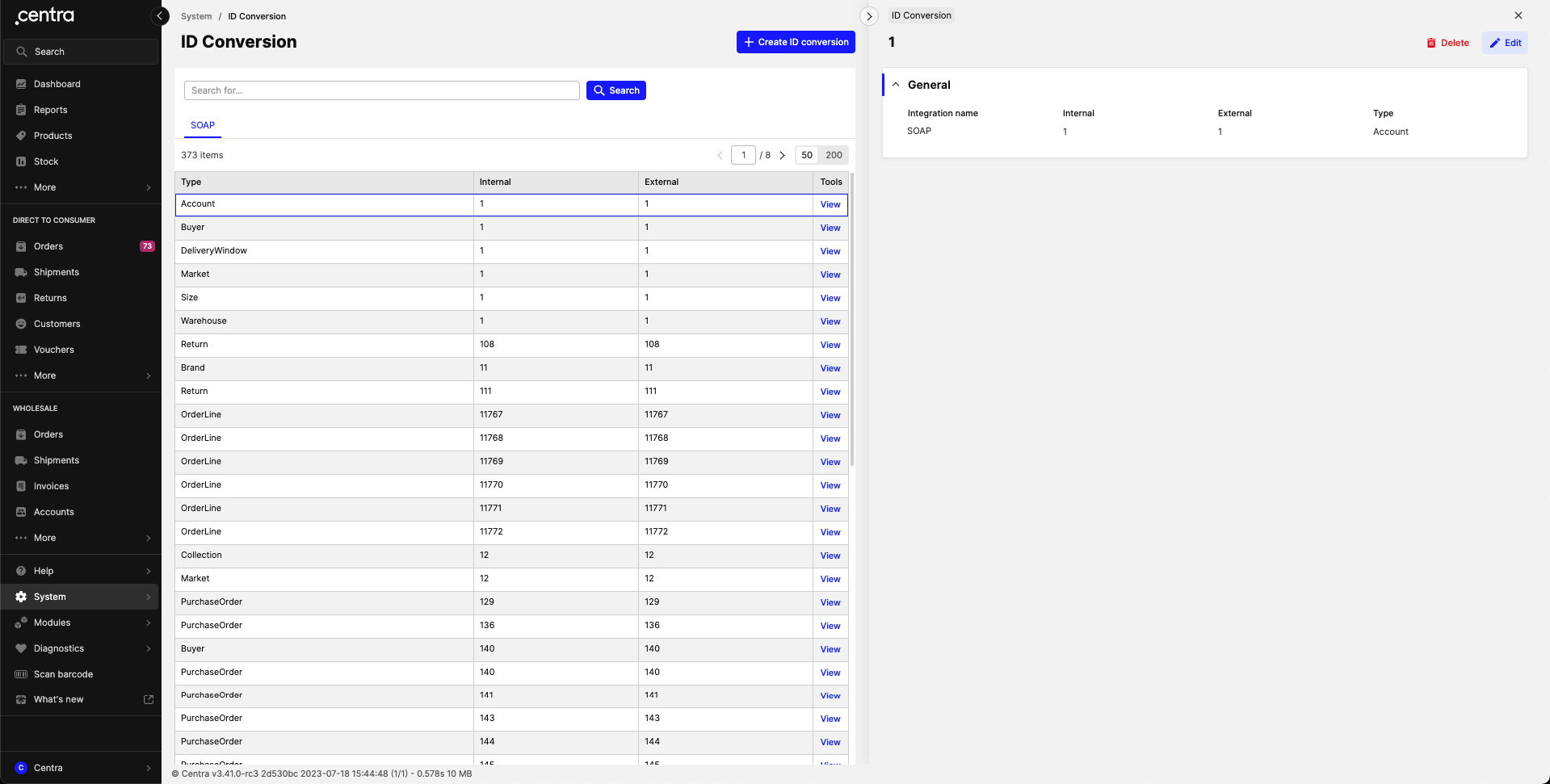
Single conversion entry view
There are buttons to edit a single conversion and delete it, just like for most of other sections in Centra.
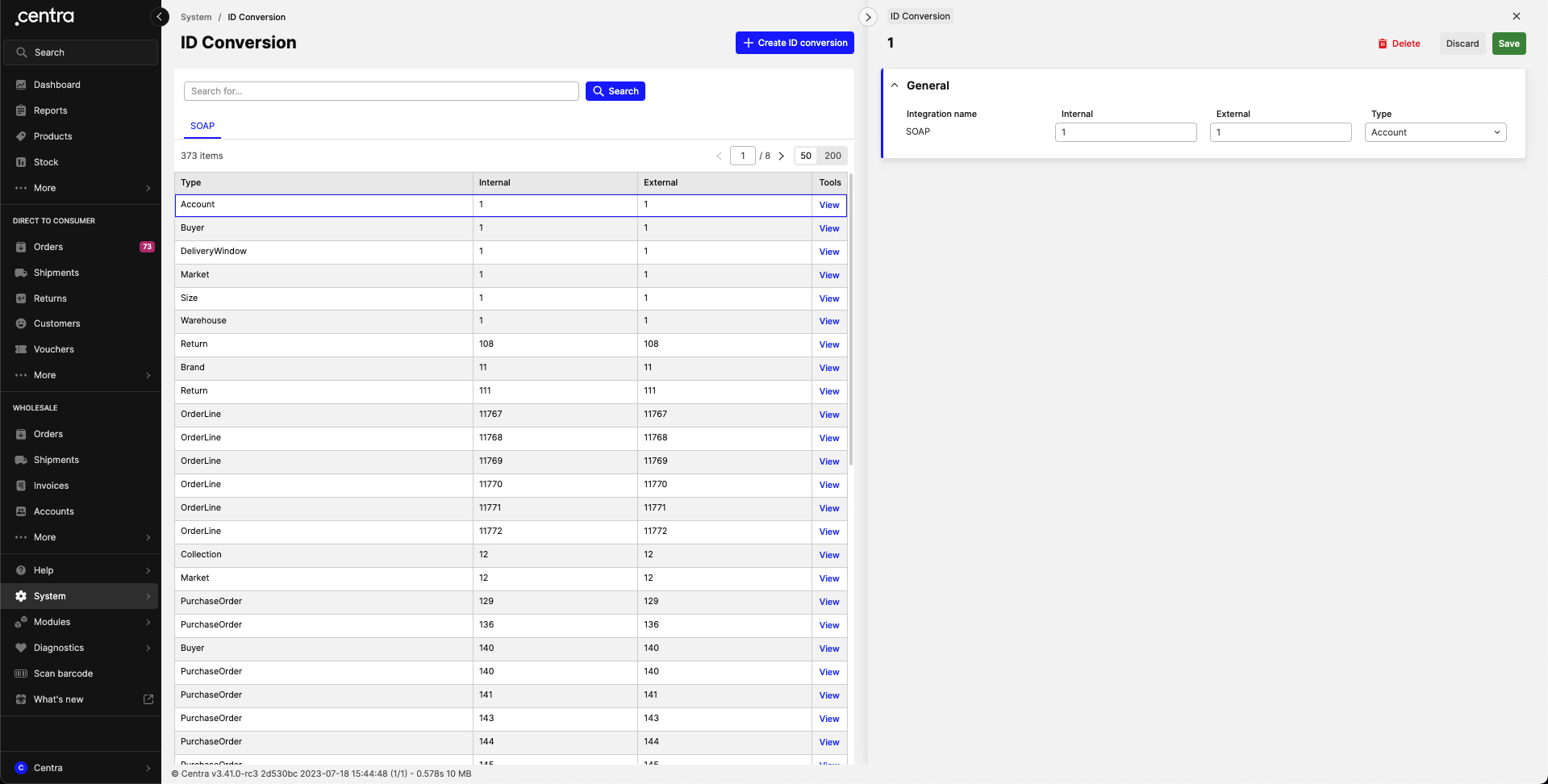
Editing a conversion entry
There is also a button to create a new ID conversion entry.
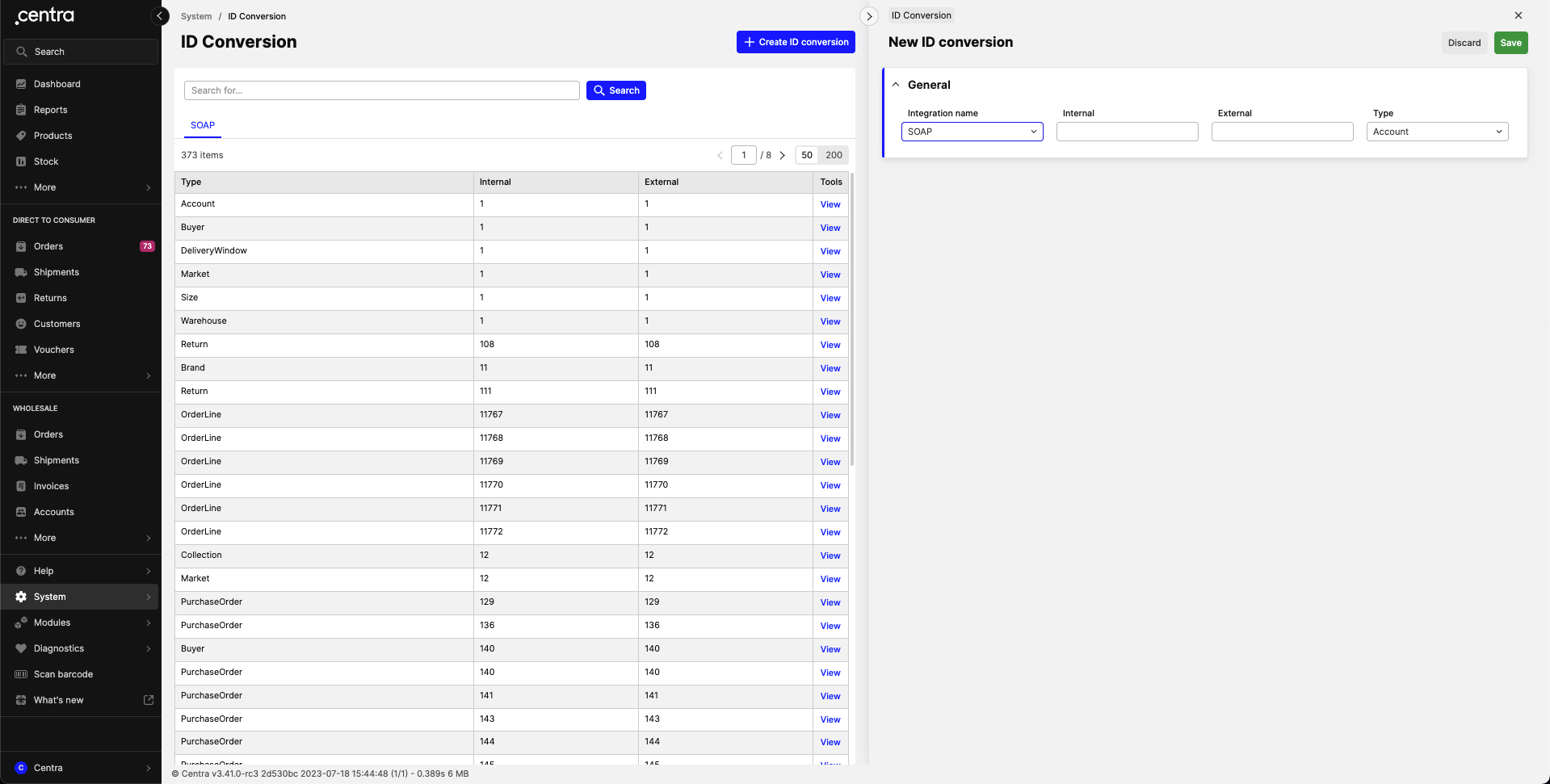
Creating a new conversion entry
Managing conversion table using the Integration API
It is also possible to manage conversion table entries through the Integration API directly, which is especially useful for objects that already exist in Centra. In order to do it, you’ll need a valid token with an integration name matching the one you want to manage ID conversion for. In order to set new ID conversions, you need to use setIdConversions mutation (required permission: IdConversion:write):
mutation {
 setIdConversions(input: {
  objectType: Market
  internalId: 1
  externalId: "A"
 }){
  entries {
   id
   externalId
   internalId
   objectType
   integrationName # will be equal to your token's integration name
  }
  userErrors { message path }
  userWarnings { message path }
 }
}
Keep in mind that this is a batch action, meaning that you can set multiple ID conversions in one request by providing an array of inputs. You can pass at most 100 entries in one call. Invalid entries (for example, a non-existing object) are skipped and reported in userWarnings, while the valid ones are saved.
This mutation is idempotent, meaning that no matter how many times this mutation is executed with the same payload, the result will be the same. This means that accidentally sending duplicate requests will not break anything.
You can view the end result with a query idConversions (required permission: IdConversion:read). It returns only the entries of your token's integration. The results are paginated: limit defaults to 20, use page to fetch more:
query AllConversions {
  idConversions(limit: 100, page: 1) {
   id
   internalId
   externalId
   objectType
   integrationName
  }
}

query JustTheMarketOne {
  idConversions(where: { objectType: Market, externalId: {equals: "A"} }) {
   id
   internalId
   externalId
   objectType
   integrationName
  }
}
In order to unset some ID conversions you don’t want to use anymore, you need to use unsetIdConversions mutation (required permission: IdConversion:write, at most 100 entries per call; entries that can't be found are skipped and reported in userWarnings). You can use either the conversion entry’s own ID or internal/external ID paired with a type:
mutation {
 unsetIdConversions(input: [
  {
    idConversion: { id: <id_of_the_entry> }
    objectType: Market
  }
  # OR
  {
    idConversion: { internalId: 1 }
    objectType: Market
  }
  # OR
  {
    idConversion: { externalId: "A" }
    objectType: Market
  }
 ]){
  userErrors { message path }
  userWarnings { message path }
 }
}
ID conversions for sizes
Sizes are not created on their own, they belong to a size chart, so they don't have create and update mutations accepting externalId. To assign external IDs to sizes, use the setIdConversions mutation (or AMS) with the Size object type.
The external ID of a size must start with the external ID of its size chart followed by |, for example Shoe sizes|42. The part after | is up to you. This way you can conveniently identify a size by its chart. Entries that don't match this prefix are skipped and reported in userWarnings.
If the size chart doesn't have an external ID in your integration yet, it is created automatically when you set the first size conversion, using the size chart's name (for example, Shoe sizes). You can also assign your own external ID to the size chart beforehand, with createSizeChart, updateSizeChart or setIdConversions – then that external ID becomes the required prefix.
Sizes of a specific product (ProductSize) are a separate object type, and they can get their external IDs directly in createProductSize and updateProductSize.
Frequently asked questions
I want to assign an external ID to an object when I use the “create“ mutation (for example createAccount). How can I do it?
Pass externalId in the create input (for example, AccountCreateInput.externalId). It is stored for your token's integration and can be used right away, also by the next mutations in the same request. You can also set or change it later with the update mutations, the setIdConversions mutation, or in AMS. See Assigning external IDs in create and update mutations.
If I delete an object, will all corresponding ID conversion entries be deleted as well?
Don't rely on it. Remove the entries you don't need anymore with the unsetIdConversions mutation or in AMS, or re-assign the external ID to another object – setting an external ID that is already in use moves it to the new object.
I cannot find a product/display/etc. by an external ID
You should check that the external ID conversion exists in AMS backend, and that your token is assigned to the same Integration for which the external ID is created. External IDs are not shared between integrations.
I use a valid external ID that is visible in the conversion table, but I still get the “Could not find … with ID …“ error. What should I do?
Most likely, the internal ID points to a non-existing object, for example, it could have been deleted previously. Update your conversion entries and try again. Also, in case your token is restricted to a store, check if the entity belongs to it. If the issue persists, contact us.
I already use the Integration API and use only Centra IDs to identify objects. Will my integration break if I’m not using external IDs?
No, it’s an entirely optional feature, you can still use Centra IDs if you have built your integration this way.