App Marketplace
The Application Marketplace is a single, in-product hub where you can discover, install and manage all the extensions available for your Centra environment — external apps, plugins, and modules. You will quickly see which applications are already active in your environment via show only installed filter, giving you a clear overview of your current integration landscape.
Types of applications
The marketplace lists three different types of applications. Each is identified by a badge and each has a slightly different installation and launch experience.
-
External apps - Third-party services built by Centra partners. They live outside Centra and have their own user interface and login. They interact with your Centra environment through Centra's APIs, like Integration API. Installation is handled by Centra's Client Success team.
-
Plugins - Integrations configured at the store level inside Centra (for example, payment providers or shipping carriers). Plugins are enabled by default for your environment by Centra, but you can configure plugin instances per store yourself. Plugins operate transparently inside Centra and don't have a separate interface to launch.
-
Modules - Extensions built by Centra that add functionality inside Centra itself. Unlike plugins, modules operate at the platform level rather than per store. Installation is handled by Centra's Client Success team.
Accessing App Marketplace
Permissions Required
The App Marketplace section is visible in the navigation under Platform → Applications for users with the APP MARKETPLACE permission. This permission can be granted by Administrators with Full access:
- Go to System > Users.
- Select the user you want to edit.
- Enable Access Rights:
APP MARKETPLACE
| 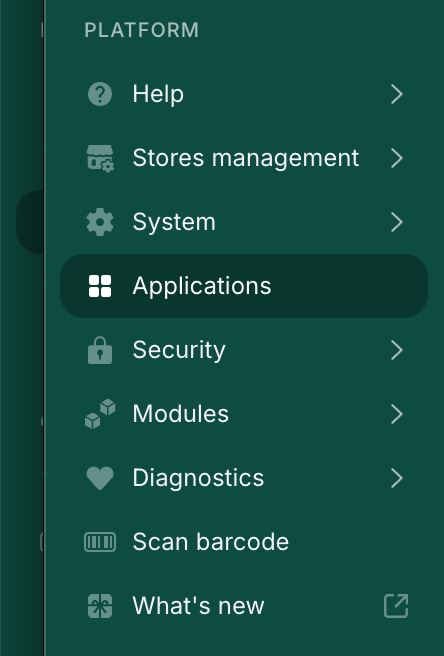 App Marketplace in the navigation App Marketplace in the navigation |
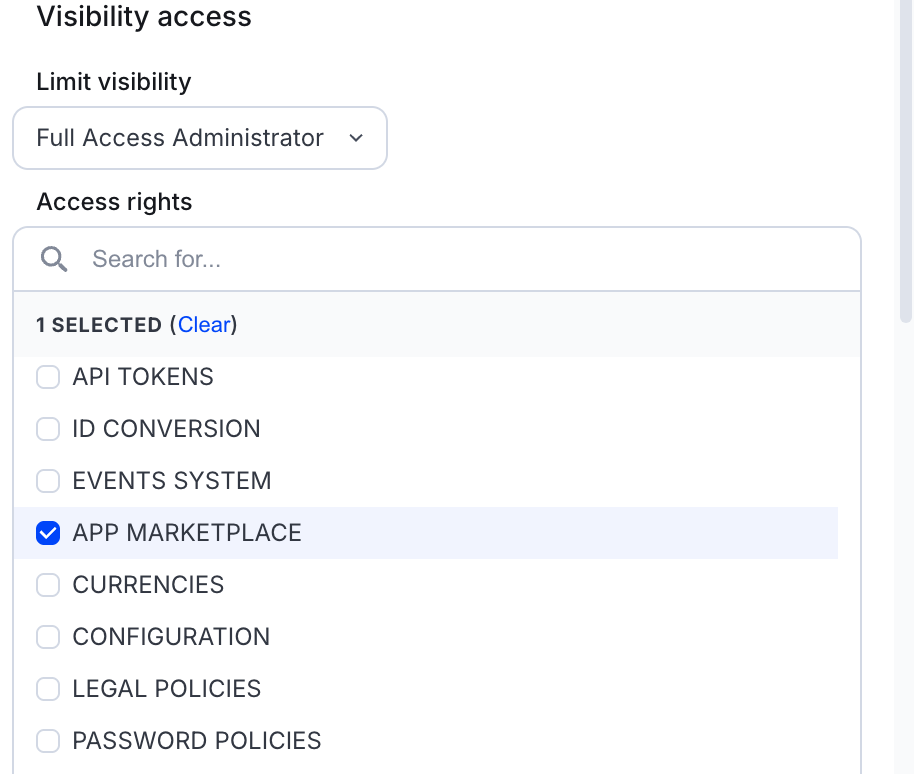 Required permission
Permissions work as follows:
- Users with
APP MARKETPLACEpermission can browse the marketplace and view app details. - Users with Full Access Administrator role can additionally request installation and launch installed apps.
Browsing App List
The app listing page displays all published applications.
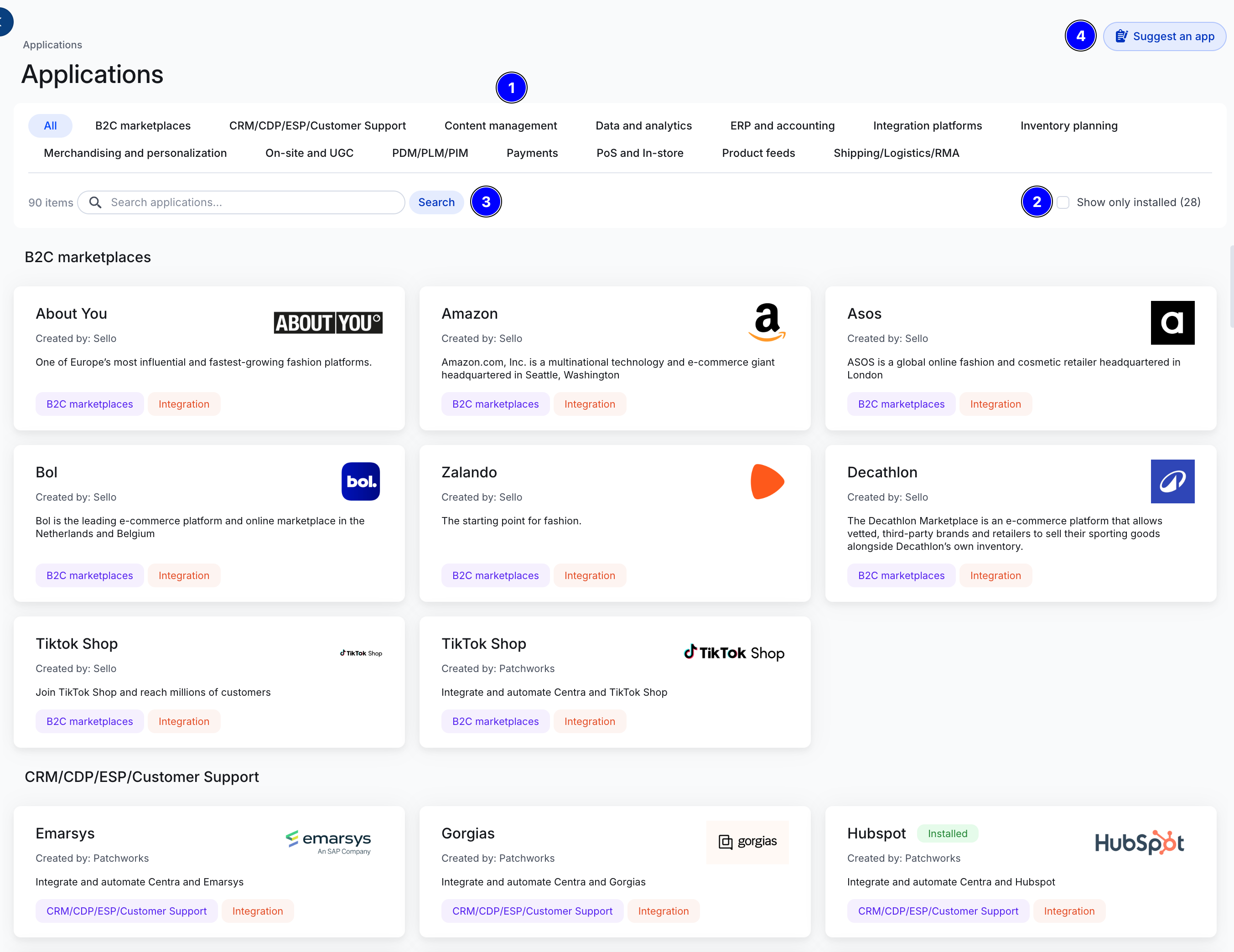
- Categories appear as a list on top of the page sorted alphabetically. Selecting a category hides all apps that do not belong to it.
- Show only installed is a special filter that shows only applications currently installed or active for the environment.
- Search filters the visible app cards. Typing at least 2 characters into the search field matches against the app title and short description. Clearing the field restores the full list.
- Suggest an app if you don't find what you are looking for. Our team regularly reviews new integration requests. We prioritize building and adding new applications based on overall demand across our customers.
Installed apps
You can easily see which applications are considered installed in the current environment by selecting the show only installed filter:
- External apps that have been installed in cooperation with Client Success Managers,
- Store plugins that have been configured for any of available stores,
- Modules that are enabled for your environment.
This gives you a quick view of the current integration landscape without having to browse by category.
Installing Applications
The installation flow depends on the type of application. Installing some applications may require Client Success team assistance.
External Apps
External apps are installed by Centra’s Client Success team on request.
- Open the app's detail page by clicking its card.
- Click Request installation (visible to ADMIN users when the app is not yet installed or and no request is pending).
- In the popup, enter a contact email address and an optional message to the installation team.
- Submit the form. The app status changes to Pending installation.
- The installation request is handled by Centra's CSM team. Once complete, the status is updated to Installed and the Launch button becomes available if the application supports it.
- If you have follow-up questions while the request is pending - or want to cancel - use the Get in touch button on the same screen.
|
|
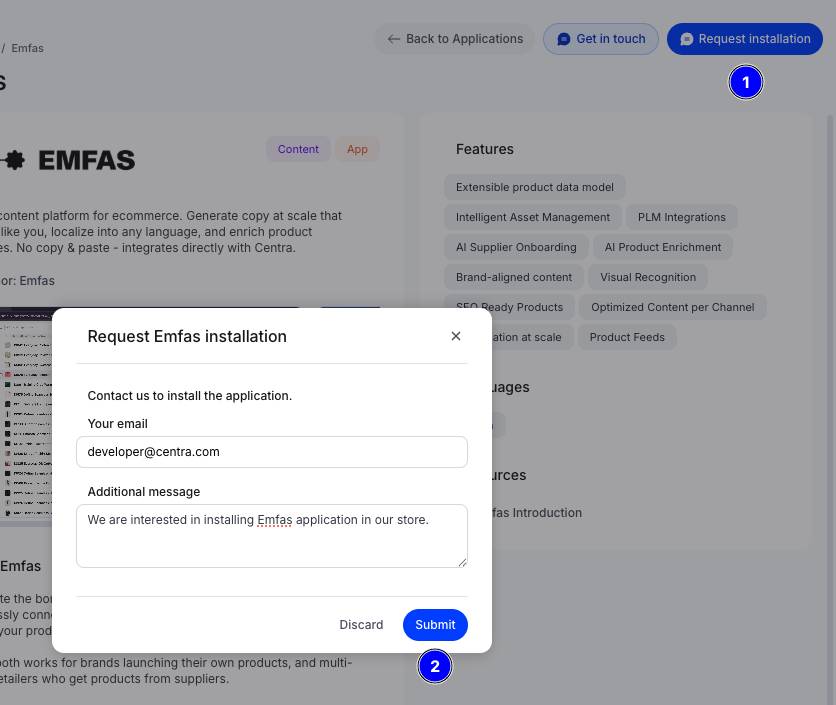 Initiate the installation by requesting to install the app (1) and submitting the installation request (2).
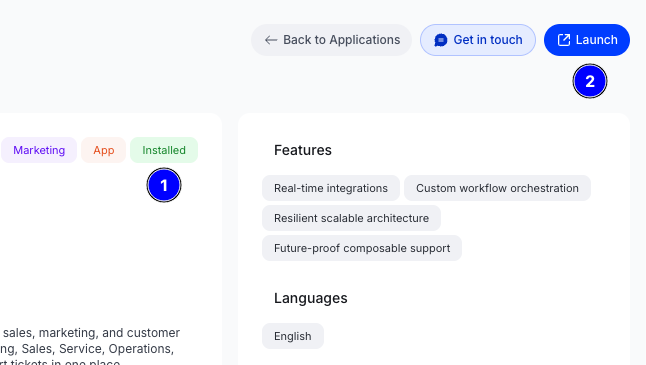 Once application is installed it will be denoted by the Installed label (1) and a Launch button (2) will be presented if the application supports it.
Store plugins
Store plugins are made available to your environment as part of your Centra configuration. When a plugin is active on one or more Stores, it is automatically shown as Installed with a per-store breakdown on the detail page.
You can configure new store plugin instance directly from the application page:
- Click Add to button
- Pick store you want to add a plugin to.
- Complete the configuration as you normally would.
|
|
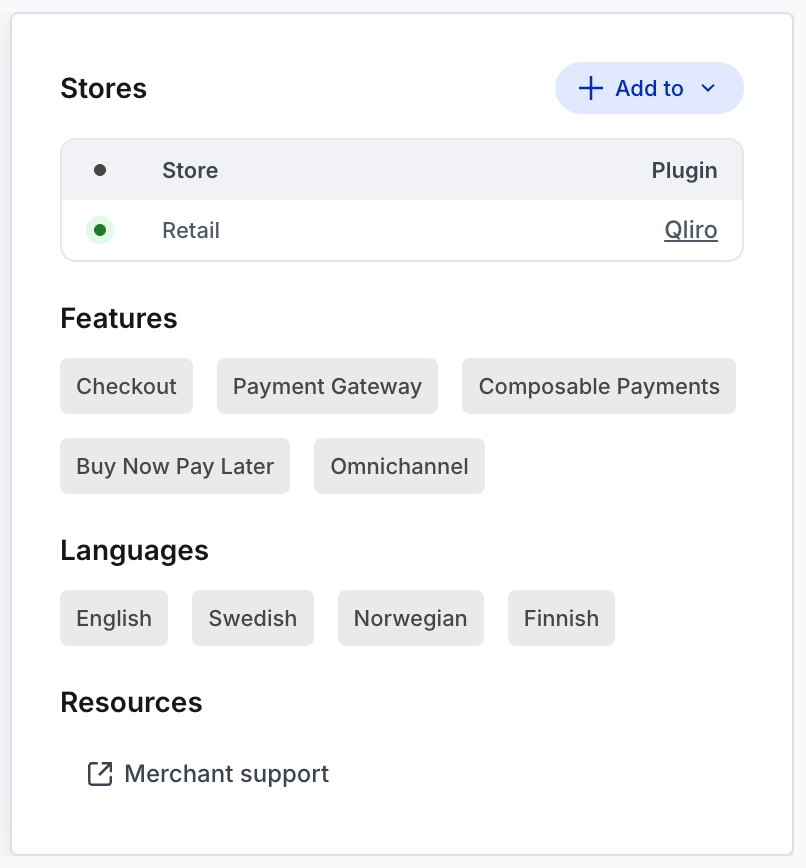 Plugins contain a list of configured instances across all of your stores.
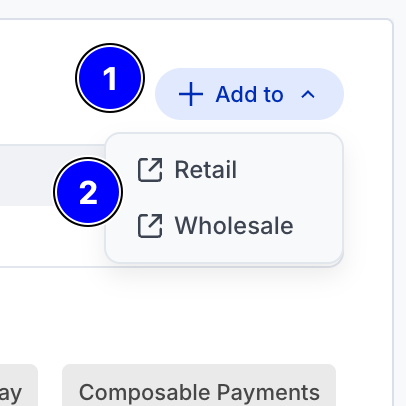 Click Add to (1) and then select the store (2) you wish to add the plugin to.
Modules
Like External apps, modules are installed by Centra’s Client Success team. If you would like to enable a module for your environment, follow the same process as External apps:
- Open the Module’s detail page by clicking its card.
- Click Request installation (visible to ADMIN users when the app is not yet installed or and no request is pending).
- In the popup, enter a contact email address and an optional message to the installation team.
- Submit the form. The Module status changes to Pending installation.
- The installation request is handled by Centra's CSM team. Once complete, the status is updated to Installed and the Launch button becomes available.
- If you have follow-up questions while the request is pending - or want to cancel - use the Get in touch button on the same screen.
Launching the Application
The Launch button appears on an app's detail page when the app is installed and supports it, and the user has the ADMIN role.
- External apps: clicking Launch opens the app's external URL in a new browser tab. This is typically the third-party service's web interface or a partner portal. Depending on the app's functionality, you might need to sign in separately with that app’s credentials.
- Modules: clicking Launch opens the module's page in Centra.
- Store plugins: there is no Launch button. Plugins operate transparently within the Centra platform and do not expose a separate launchable interface through the App Marketplace. You can open a store plugin settings page directly from the application page.