PayPal Commerce
This plugin enables payments with a customers PayPal account or with credit card.
Set up
To configure PayPal Commerce plugin in Centra go to store plugins, select desirable plugin and you should see similar screen to the screenshot below.
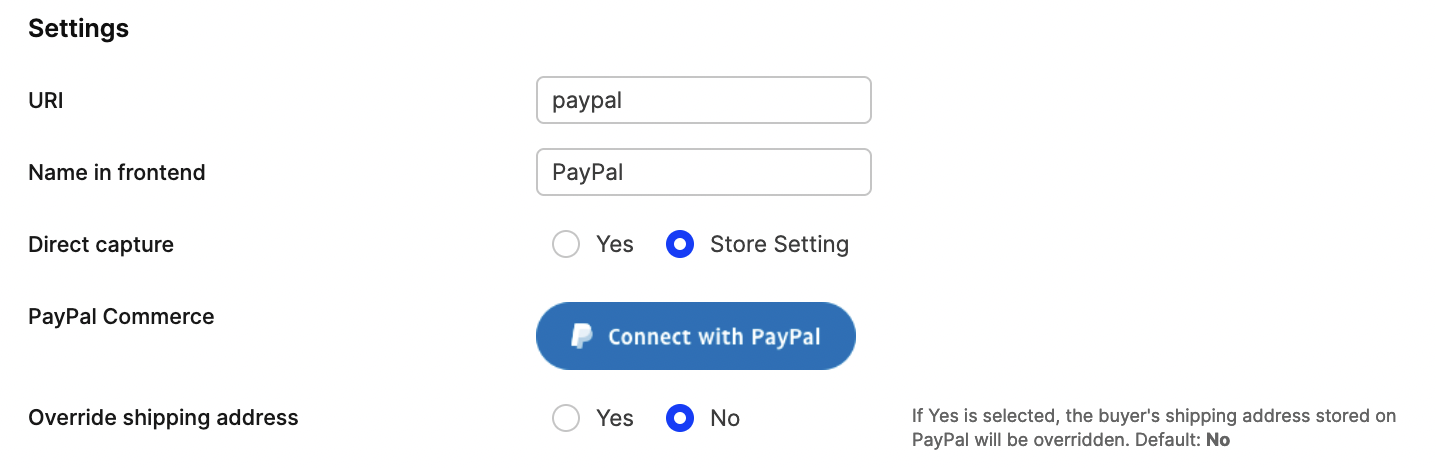
To connect your account just click Connect with PayPal button and follow steps on PayPal page. This operation will bind your account with Centra. After this you can start using PayPal Commerce.
If the plugin is setup on your Q/A server it will talk to the PayPal sandbox, or for the production server it will talk to PayPal's production.
You can also restrict PayPal to only work for specified markets, pricelists, countries or languages.
Override Shipping Address
When set to Yes - Centra will pass the shipping address to PayPal instead of using the adress from PayPal's address book.
This mode worked for both Redirect, and Smart Buttons flow. Note that when this option is enabled then
it is not possible to change the address while paying and the shopper has to navigate back to merchant to update
the address. Usual PUT /payment-fields flow should be implemented, which takes care of updating the address on PayPal's side.
Limitations
- We require the customer to select the correct country and state before starting the PayPal checkout process.
- For merchants who need flexibility in payment captures, the Integration API supports partial captures, whereas the Order API does not.
Usage
This plugin can be used in 2 ways: either the checkout redirects to PayPal, or you render what PayPal calls smart buttons on the checkout page, which enables payments with either credit card or PayPal account.
Redirect
This method is identical to how Centra's previous PayPal plugin worked. It works by responding with a URL that you will redirect the customer to, and once the customer is done with the payment they will be redirected back to the webshop (either paymentReturnPage or paymentFailedPage), where you can call our payment-result endpoint just as described in our Payment method flows documentation, or retry payment in case it failed.
Smart Buttons
Includes buttons generated by PayPal on the checkout page which launches PayPal in a popup.
Flow
The flow works like this:
- Customer adds products to their cart. The country is either selected by the customer or selected by Geo-IP (based on the IP-address of the customer).
- The website makes a
POST /paymentrequest with theaddress.country(andaddress.state, if state is selected) for the customer, together with apaymentInitiateOnly:true-parameter. This tells Centra not to set the payment option as the selected one (since the payment button is selected opt-in by the customer when pressing it). This call can be made directly when the user accesses the checkout page. - Centra will return a snippet that will try to launch the payment request button inside its own
<div>provided in the snippet. You can also set the selector of the payment button by setting thewindow.paypalSmartButtonSelector-variable in the DOM. - If the customer changes anything in their selection, such as the quantity for a product, a similar
POST /paymentcall as explained in #2 needs to be run to reload the payment button snippet with the proper amount set.
Events
Since Centra does not know how you make requests to the API, you need to listen to events from the payment button and trigger API-calls to Centra based on what they are used for. PayPal commerce currently supports two types of events:
centra_checkout_shipping_address_callbackwhich can be triggered upon starting the payment, which allows you to pre-fill the checkout details using customer's information stored in PayPal,centra_checkout_payment_callbackwhich is triggered when a payment is completed.
Payment Initialization
To get the buttons, start by making a call to POST /payment:
{
  "address": {
    "country": "SE"
  },
  "paymentMethod": "paypal-commerce",
  "paymentInitiateOnly": true,
  "termsAndConditions": true
}
This will result in a response with action form and the formHtml field which will contain HTML + JavaScript that is expected to run on your website. It will include the PayPal JavaScript code and initialize the buttons in the <div> element provided in the formHtml code. Alternatively, you can choose to decide where these buttons go by specifying a selector by setting the window.paypalSmartButtonSelector-variable.
Response example:
{
"action": "form",
"formType": "paypal_commerce",
"formFields": {
"id": "<paypal-token>"
},
"formHtml": "<div id=\"paypal-button-yrdjjofjruuxuqhlr2vznlxumqgw0v1t97qhbpm\"></div>\n<script src=\"https://www.paypal.com/sdk/js?client-id=<client-id>&merchant-id=<merchant-id>¤cy=SEK&intent=authorize&integration-date=2021-03-01\"></script>\n<script id=\"paypal-script-yrdjjofjruuxuqhlr2vznlxumqgw0v1t97qhbpm\" data-payment-method=\"paypal_commerce\">\n var randomId = \"yrdjjofjruuxuqhlr2vznlxumqgw0v1t97qhbpm\";\n var country = \"SE\";\n var buttonElement = window.paypalSmartButtonSelector || \"#paypal-button-\" + randomId;\n var scriptObject = document.getElementById(\"paypal-script-\" + randomId);\n var paymentMethod = scriptObject.dataset.paymentMethod;\n paypal.Buttons({\n createOrder: function (data, actions) {\n return \"<paypal-token>\";\n },\n onApprove: function (data, actions) {\n var eventObject = {\n paymentMethod: paymentMethod,\n paymentMethodSpecificFields: {\n payment_method_id: data.orderID\n },\n responseEventRequired: false,\n addressIncluded: false,\n shippingAddress: {\n country: country, \n },\n billingAddress: {\n country: country, \n },\n };\n \n paymentCompleteEvent = new CustomEvent(\"centra_checkout_payment_callback\", {detail:eventObject});\n document.dispatchEvent(paymentCompleteEvent);\n \n return true;\n }\n }).render(buttonElement);\n</script>"
}
Get shopper's address from PayPal
When initiating payment (clicking PP smart button), you can expect PayPal to trigger an event called centra_checkout_shipping_address_callback. This allows you to easily check out logged in PayPal users. Please be aware that the address change might also affect order total, for example by adding state-level taxes in United States.
So how can you handle it in your webshop?
-
Listen to
centra_checkout_shipping_address_callback -
Read address data from the event payload:
{"shippingCountry": "US","shippingZipCode": "95131","shippingState": "CA","shippingCity": "San Jose"} -
Call
PUT /payment-fieldswith address data towards Checkout API orsetAddressmutation in Storefront API -
During update to selection, Centra will send a server-side update to Paypal and customer will be charged the proper amount matching the current basket total.
NOTE: This event handler should also be implemented when using Override Shipping Address option, because PayPal makes an address verification request anyway.
Payment finalization
We will now handle the final event happening when payment is completed in PayPal by the customer. We previously registered the following handler:
document.addEventListener(
  'centra_checkout_payment_callback',
  this.paymentSelected
);
Which is the one that will trigger now.
The following data is returned in this event:
| Field | Type | Comment |
|---|---|---|
responseEventRequired | boolean | Always false for PayPal. |
addressIncluded | boolean | Always false for PayPal. |
paymentMethodSpecificFields | object | This data should be sent to the POST /payment call in Centra for the payment to be validated. |
paymentMethod | string | The selected payment method used. |
billingAddress | object | Data containing the address for billing. for PayPal just contains country and state. |
billingAddress.state | string | Optional, can be empty for countries not supporting states. |
billingAddress.country | string | Country code |
shippingAddress | object | Data containing the address for shipping. For PayPal just contains country and state. |
shippingAddress.state | string | Optional, can be empty for countries not supporting states. |
shippingAddress.country | string | Country code |
We would take the event data, and create a checkoutRequest based on the data provided. This data would then be sent to the POST /payment in the Centra API.
paymentSelected = (event: any) => {
    const { checkoutRequest: checkout } = this.props;
    const { paymentMethodSpecificFields, paymentMethod } = event.detail;
    const { billingAddress: billingAddressData, shippingAddress: shippingAddressData } = event.detail;
    const billingAddress: IAddress = Address.create(billingAddressData);
    const shippingAddress: IAddress = Address.create(shippingAddressData);
    checkout({
        paymentMethodSpecificFields,
        paymentMethod: paymentMethod,
        billingAddress: billingAddress,
        shippingAddress: shippingAddress,
    });
}
This request would then result in the common PaymentActionResponse, explained in the Swagger UI and in Payment flows.
Pay Later as standalone buttons
PayPal can display financing and region-specific funding sources (for example Pay Later, PayPal Credit, Venmo) as standalone buttons on the checkout page, separate from the main PayPal Smart Buttons. These buttons must follow PayPal “smart eligibility” rules and should only be rendered when eligible.
Centra supports standalone buttons by exposing an eligible-funding list in plugin settings. Based on plugin configuration appropriate funding methods will be passed to PayPal SDK.
NOTE
In Sandbox, PayPal determines buyer country primarily from GeoIP, before the buyer logs in, which directly affects which funding sources are considered eligible (and therefore which standalone buttons can render). If you test from a non-eligible location, Pay Later / Credit may not render even when they appear later inside the PayPal wallet after login.
For the above reason Centra cannot force PayPal to display a specific button and the configuration is interpreted as intent from the merchant, and cannot guarantee the buttons will show up.
Further reading: PayPal standalone buttons documentation.
Pay Later messaging
In addition to standalone buttons, you can display Pay Later messaging—dynamic banners and text that inform customers about available financing options early in the shopping journey. This helps increase conversion by showing customers they can "Pay in 4" or use PayPal Credit before they reach the final payment step.
Supported placement
Pay Later messaging is currently supported on the checkout page and basket page. PDP is not supported
How to integrate messaging
- SDK Initialization: The PayPal SDK is initialized during the
paymentInstructionsAPI call when usingpaymentMethod:paypal. - Fetch the Script: Centra returns the required PayPal SDK script directly in the
paymentInstructionsresponse. This script is pre-configured based on your plugin settings and includes the necessary parameters to initialize both the buttons and the messaging components. - Include the messaging element on the page: Once the SDK is initialized on the page, the frontend must provide a container for the messaging. Add a parameterized div element where you want the message to appear e.g. checkout page or a basket page.
     <div
       data-pp-message
       data-pp-style-layout="text"
       data-pp-style-logo-type="inline"
       data-pp-style-text-color="black"
       data-pp-style-text-size="12"
       data-pp-amount={selectionTotalPrice}
       data-pp-placement="payment"
     />
:::note Pay Later messaging regional availability PayPal Pay Later messaging is supported only for merchants with a business registered in countries where the Pay Later payment method is available. Please refer to PayPal's documentation on payment methods availability to confirm if your region is supported. :::
Testing
Make sure to test towards the centra QA server to ensure you are talking to the PayPal sandbox.